
In recent months, the use of AI-based tools to transcribe and summarize video calls has become increasingly common. Tools such as Read.AI, Noota, and Otter.ai can be integrated with Microsoft Teams and other platforms. While these tools are certainly useful, they also pose significant privacy and confidentiality risks.
In recent months, the use of AI-based tools to transcribe and summarize video calls has become increasingly common. Tools such as Read.AI, Noota, and Otter.ai can be integrated with Microsoft Teams and other platforms. While these tools are certainly useful, they also pose significant privacy and confidentiality risks.
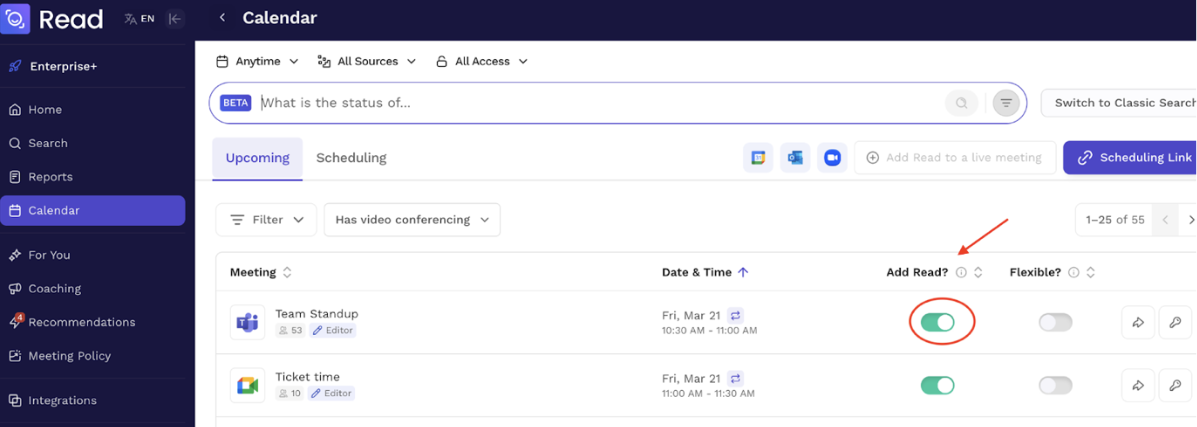
These applications initially require access to the user’s calendar to automatically join all scheduled online meetings. They often participate in meetings without a clear notification of their presence. Once connected, they collect and process various data, including:
- Audio and video of the call
- Shared content (screen, attachments, chat)
- List of participants
This data is sent, stored, and processed on external cloud servers, with security measures and guarantees that are not always transparent. This can create potential issues in private settings and during official or institutional meetings, or meetings with external partners (e.g., Department Councils, Faculty Boards, Committees, project meetings).
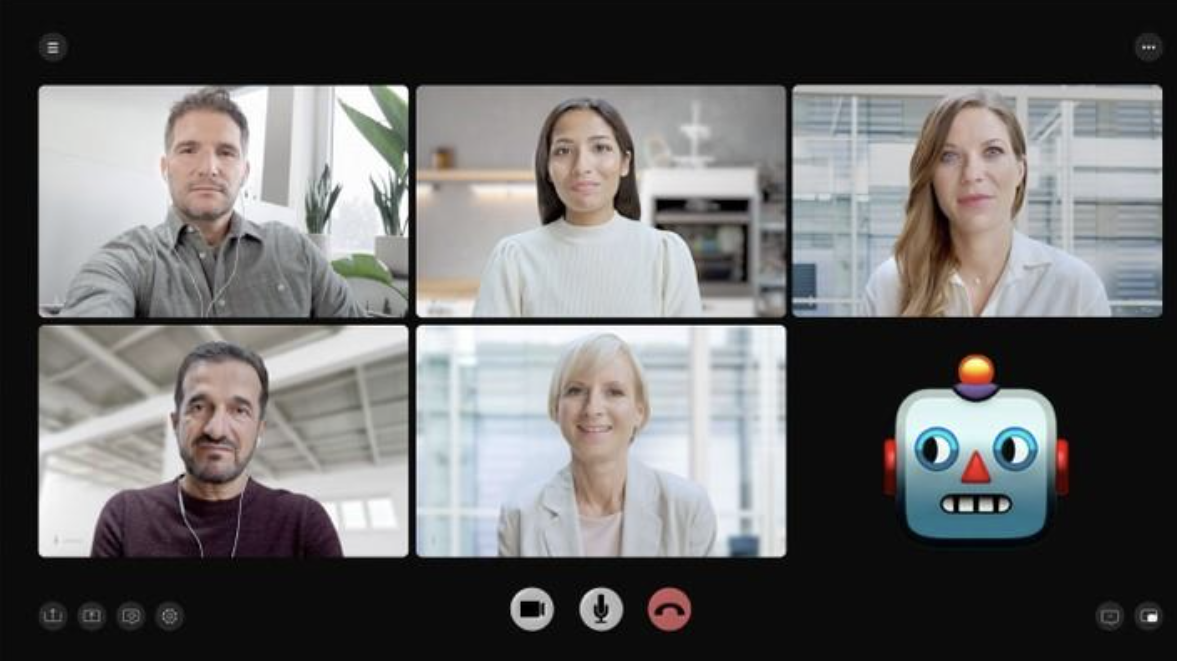
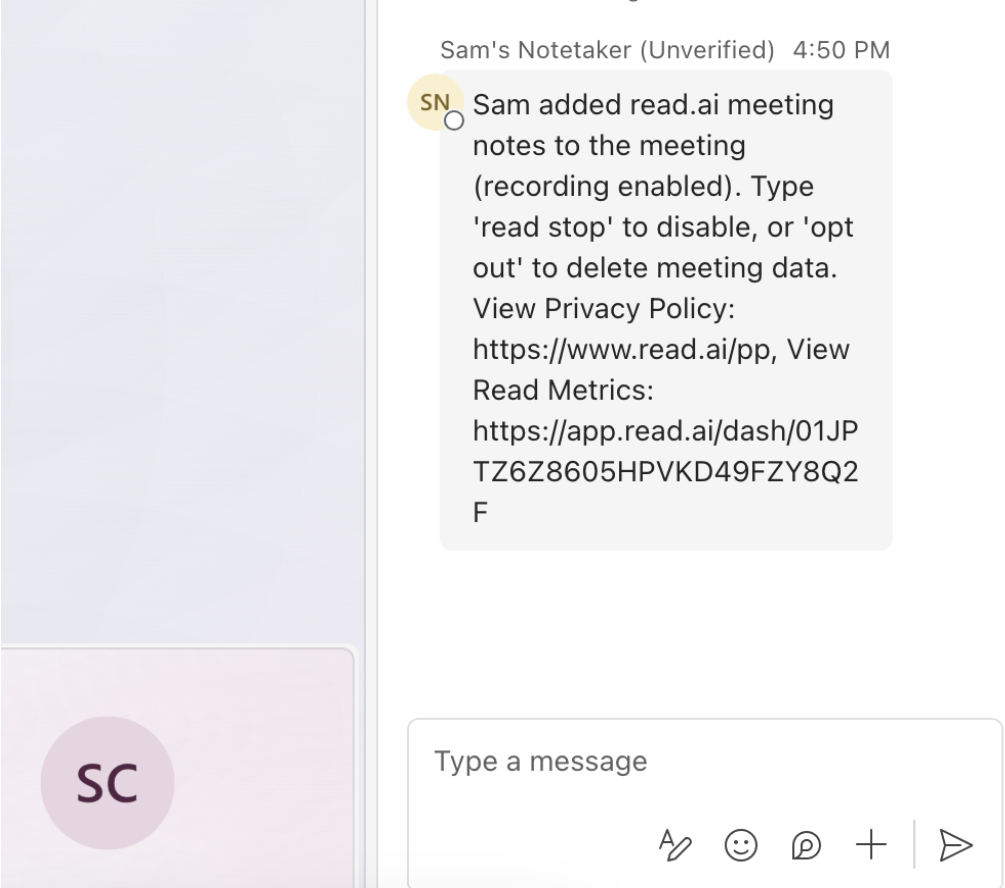
- Always check for the presence of bots or transcription tools during a call. Their presence is usually indicated in the chat or the participants list. They can often be removed via right-click → “Remove from call” (or equivalent).
- Be transparent with other participants: always inform them if you are using recording or automatic transcription tools.
- Exercise caution with sensitive content: avoid using these tools in situations that require confidentiality.
- Through your Office 365 account’s connected apps page: Visit myapps.microsoft.com to see which applications have requested access to your Office 365 data. From here, you can check which apps are connected to your account and manage their permissions.
- Through each individual application’s settings:
Each app allows you to modify default configurations. For example, to remove Read.AI, log in at www.read.ai using your account credentials, access the settings, and disable permissions for calendar and meeting access.