University IT Services logo

Cloud Storage Services – OneDrive and Dropbox

Immagine
icona dropbox e one drive

The University provides personal cloud storage services that allow you to save, manage, and share files simply and securely. Specifically, Dropbox Business and Microsoft OneDrive Business are available—tools that enable you to access your files from any device and collaborate easily.

Solutions are available with different activation methods and space expansion options. Below are the conditions, costs, and procedures to request the service:

  • OneDrive Business: a base allowance of 300 GB of cloud storage is included for everyone with active Office 365 services. Storage capacity can be expanded beyond 300 GB at the following rates:
  • Dropbox Business: subscriptions to Dropbox Business services can only be activated upon request at the following costs: €60/year for activation and the first 3 TB of storage.
  • For both OneDrive and Dropbox, available storage can be expanded in increments of €20/TB/year. For further information, please consult the Microsoft 365 and Dropbox Activation page.
  • Cloud storage and/or licenses for OneDrive and Dropbox can also be requested for collaborators (postdocs, PhD students, etc.) under the same conditions.

Requests and any space extensions are managed via MyPoli (login required) during dedicated periods, in accordance with the co-funding rules set by the University.

For the student community:

  • OneDrive offers 50 GB of storage along with access to Microsoft 365 online applications.
  • With Dropbox, students also have an account with 15 GB of storage space, which is not affected by materials shared by professors with an active Business account.

Service activation is done through the Teaching Portal (Portale della Didattica).

It is possible to request cloud storage space and/or licenses for OneDrive and Dropbox for collaborators (postdocs, PhD students, etc.) under the same conditions.
 

Immagine
schermata home dropxbox

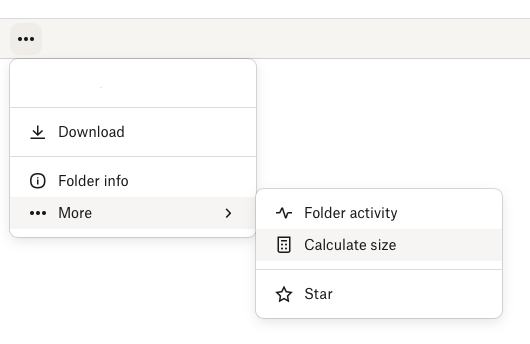
It is possible to check your storage space usage by accessing Dropbox via browser. You need to:

  1. Go to the Dropbox website.
  2. Log in.
  3. Go to the home page
  4. From the side menu, click on the three dots and select "More".
  5. Click on "Space used" (or "Used space").

If the used storage space exceeds the available limit, Dropbox and OneDrive will no longer allow uploading new files or modifying existing ones. It will still be possible to delete content to return below the available storage threshold.

If the Dropbox Business license is not renewed, the account will automatically be downgraded to Dropbox Basic. If the existing data exceeds the limit provided by the Basic plan, it will not be possible to upload or modify files until the storage falls back within the allowed limits by deleting files.

At any time, you can check your used storage space by visiting https://politoit-my.sharepoint.com/.

In the bottom-left corner of the page, your available storage space is displayed. Clicking on this indicator opens a detailed page showing the files that occupy the most space.

Yes. OneDrive allows you to restore files from the recycle bin and recover previous versions, in accordance with the service's policies.

Who it is intended for

 
Immagine
icona docenti

Faculty

 
Immagine
icona studenti

Students