University IT Services logo

How to set up your institutional email on the Gmail app for mobile devices

Immagine
icona gmail

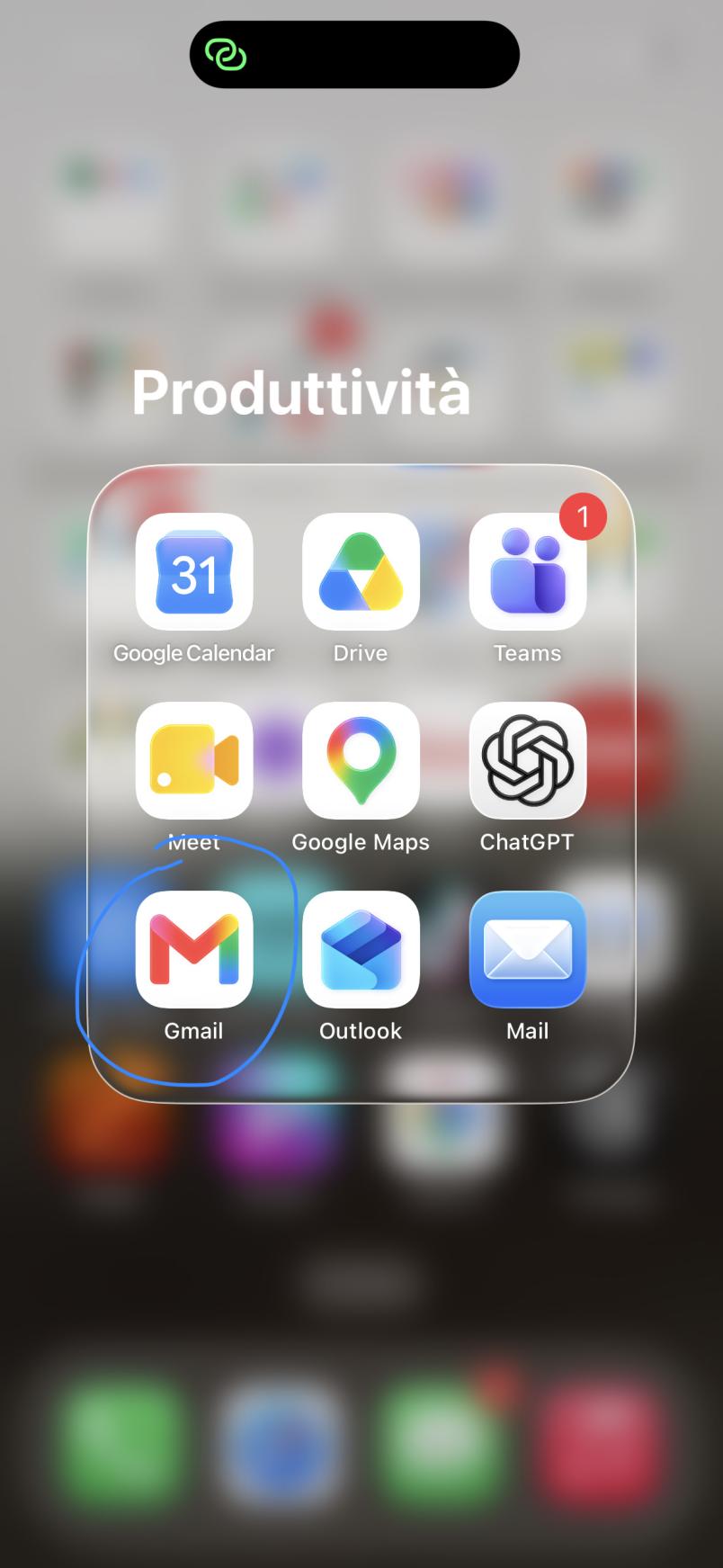
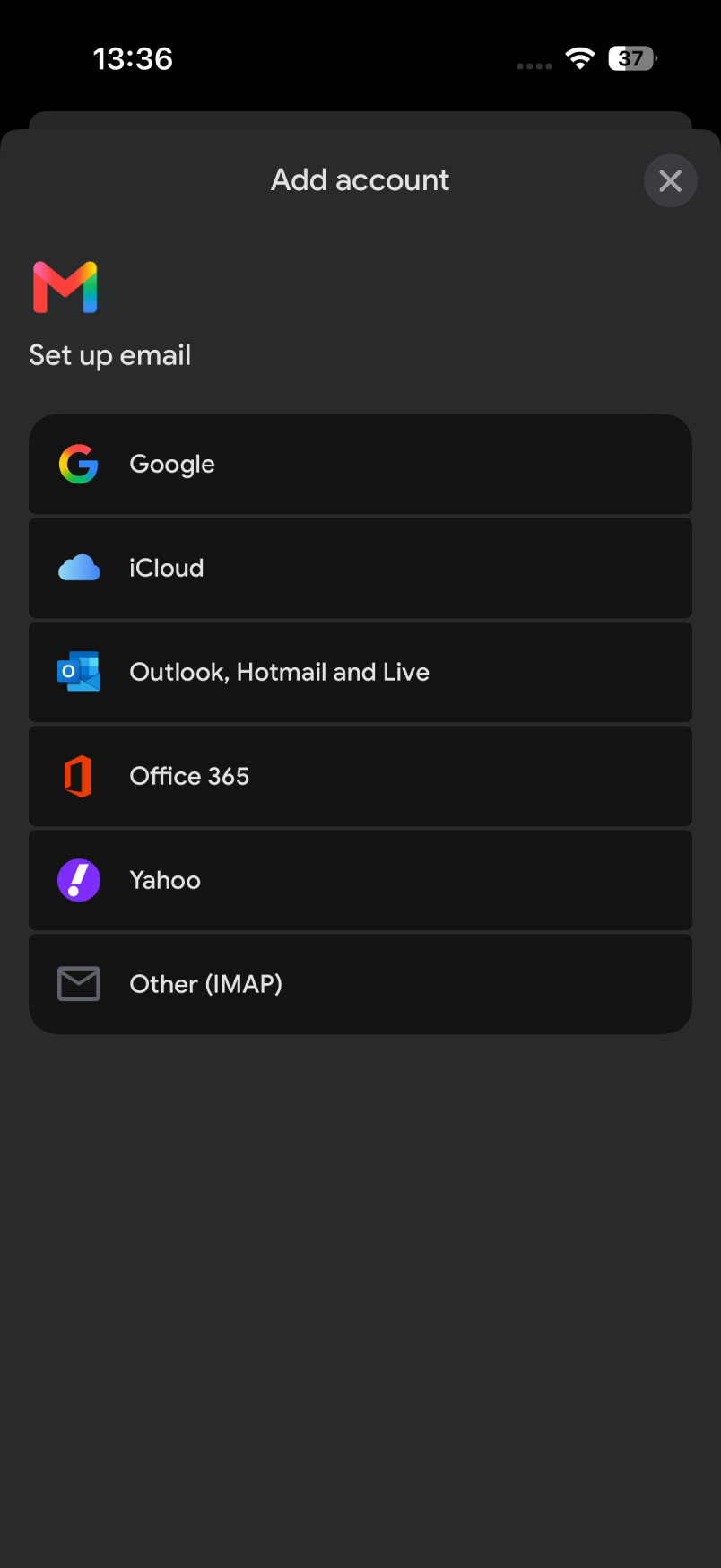
One of the first things to do at the start of your journey at the Politecnico di Torino is to have your University email always at hand on your phone. If you use the Gmail app for mobile devices, the account setup procedure is very simple. Grab your smartphone and follow the instructions with the images below to complete the configuration in just a few taps.
Immagine
icona app gmail

Open the Gmail app and tap your profile picture in the top right corner.

Immagine
Gmail_Mobile_EN_Step3.PNG

Tap Add account or Add another account (if you have already set up a personal account).

Immagine
Progetto senza titolo (2).jpg

Select other.

Immagine
Passaggio 4.PNG

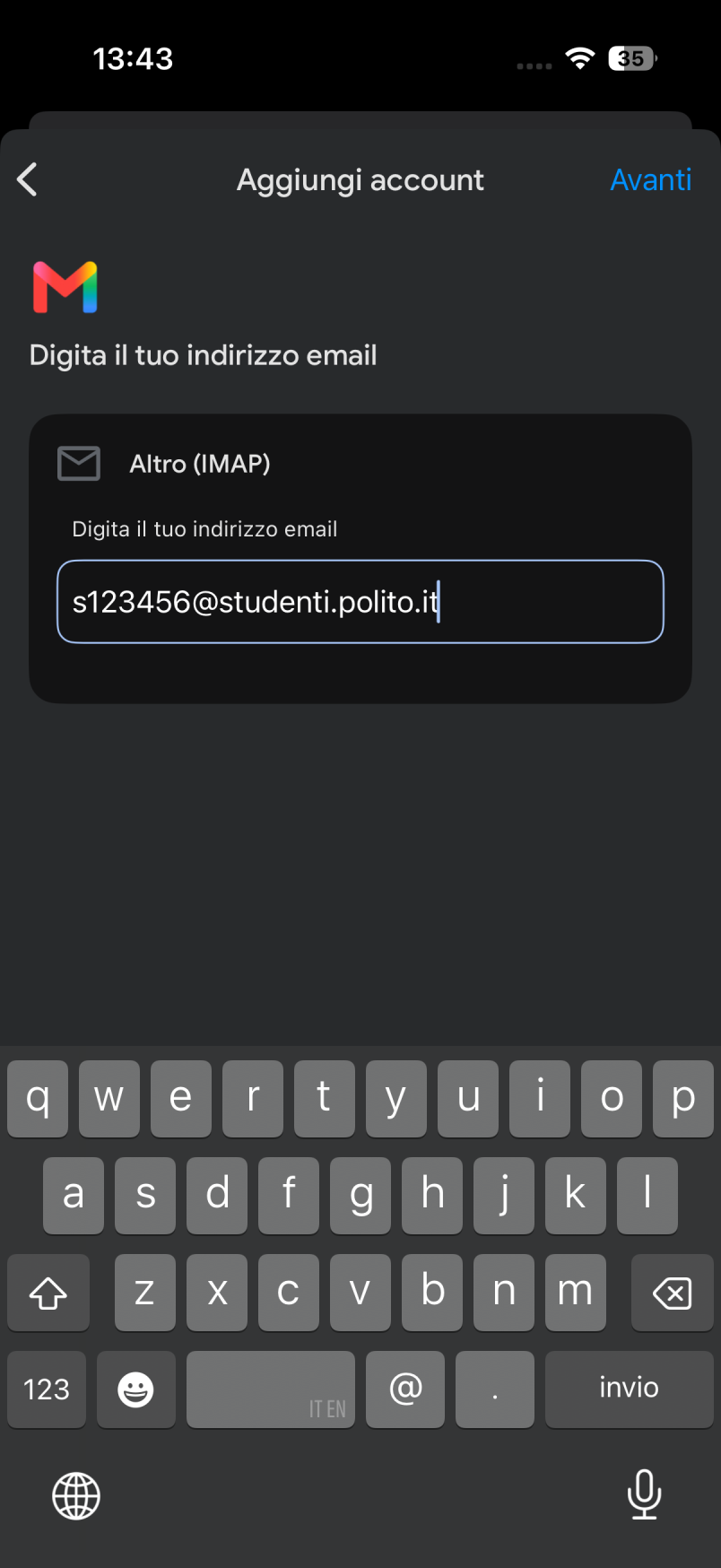
Enter your full PoliTO student email address and tap Next.

Immagine
Passaggio 5.PNG

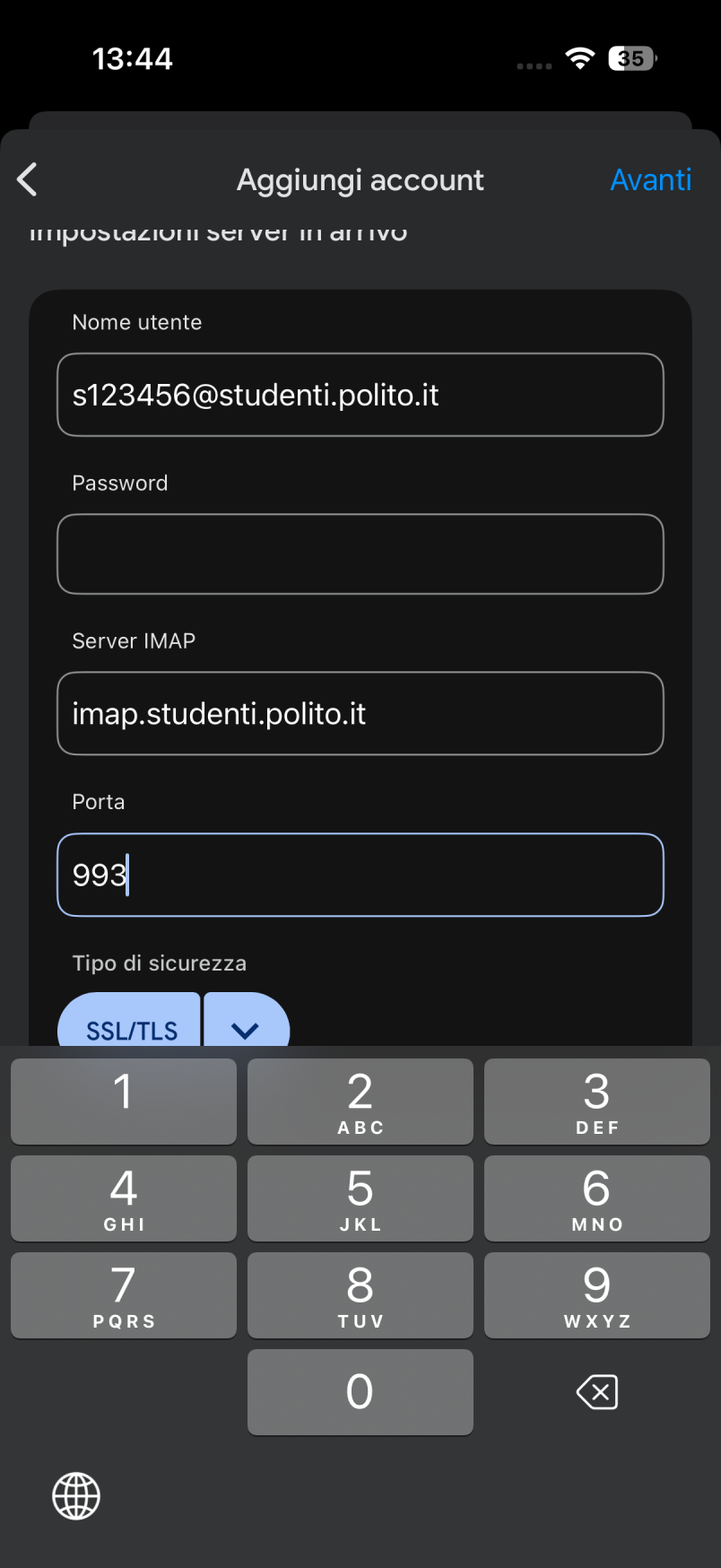
Enter the following settings:

  • Username: Your full PoliTO student email address
  • Password: Your PoliTO account password
  • IMAP Server: imap.studenti.polito.it
  • Port: 993
  • Security type: SSL/TLS
  • Tap Next.
     

Immagine
Passaggio 6.PNG

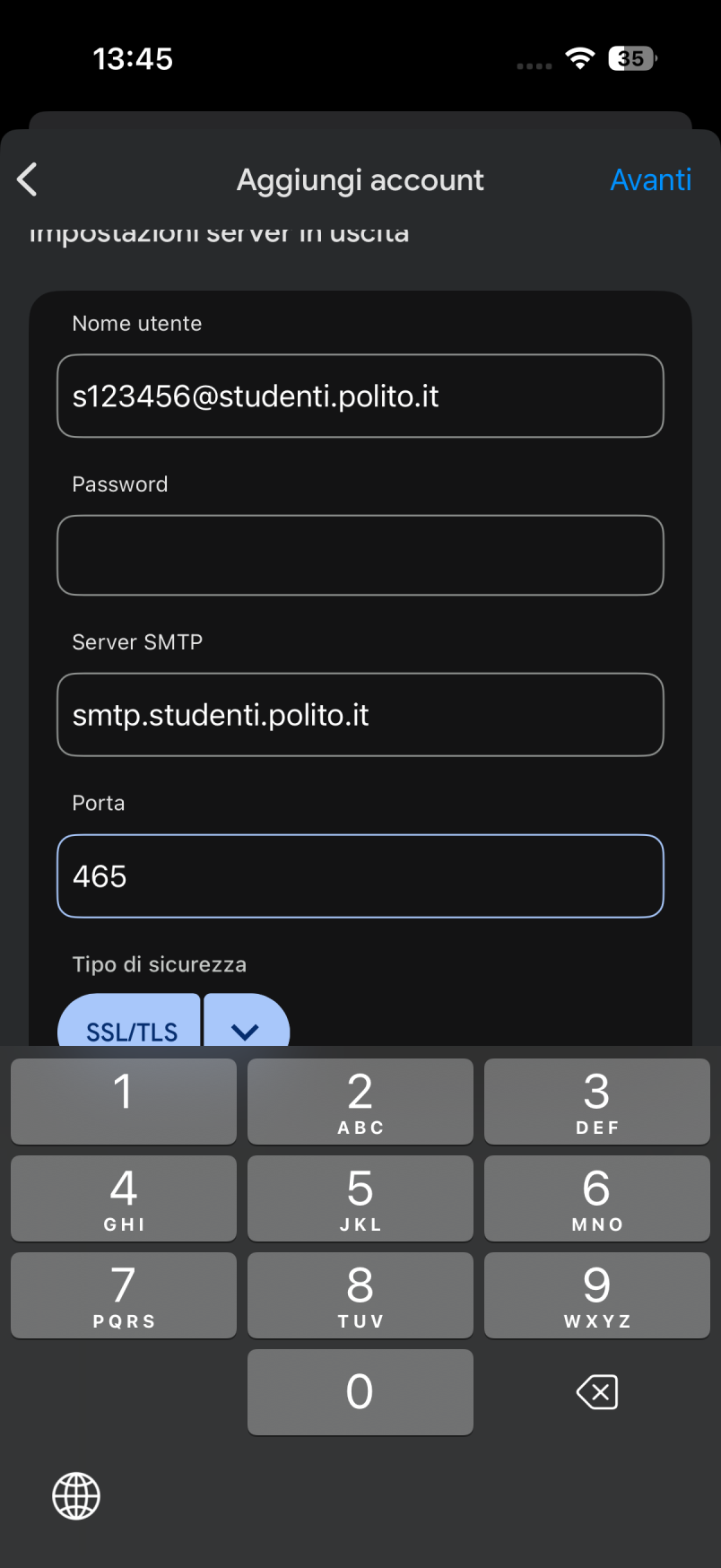
Enter the following settings:

  • Username: Your full PoliTO student email address
  • Password: Your PoliTO account password
  • SMTP Server: smtp.studenti.polito.it
  • Port: 465
  • Security type: SSL/TLS
  • Tap Next.

Immagine
Progetto senza titolo (3).jpg

Wait a few seconds for the setup process to finish. Once added successfully, Gmail will display the new account within the app.

Your PoliTO email is now ready to use.