University IT Services logo

How to set up PoliTO email on Apple Mail (iPhone/iPad)

Immagine
mini-hero-mail.png

If you own an iPhone or an iPad, Apple's Mail app is the most convenient and integrated solution for managing your university email. Configuring your @studenti.polito.it email on iPhone or iPad allows you to read and send emails directly from the Mail app and receive notifications for new messages. 

Follow this illustrated guide to complete the setup in a few simple steps.


  • Open Settings on your mobile device.
  • Go to Apps → Mail → Mail Accounts.
  • Tap Add Account.
icone ufficiali (17).jpg

  • On the "Choose your provider" screen, tap Add Other Account
  • Select Mail Account.
icone ufficiali (18).jpg

Immagine
Mail_IOS_EN_Step3.PNG

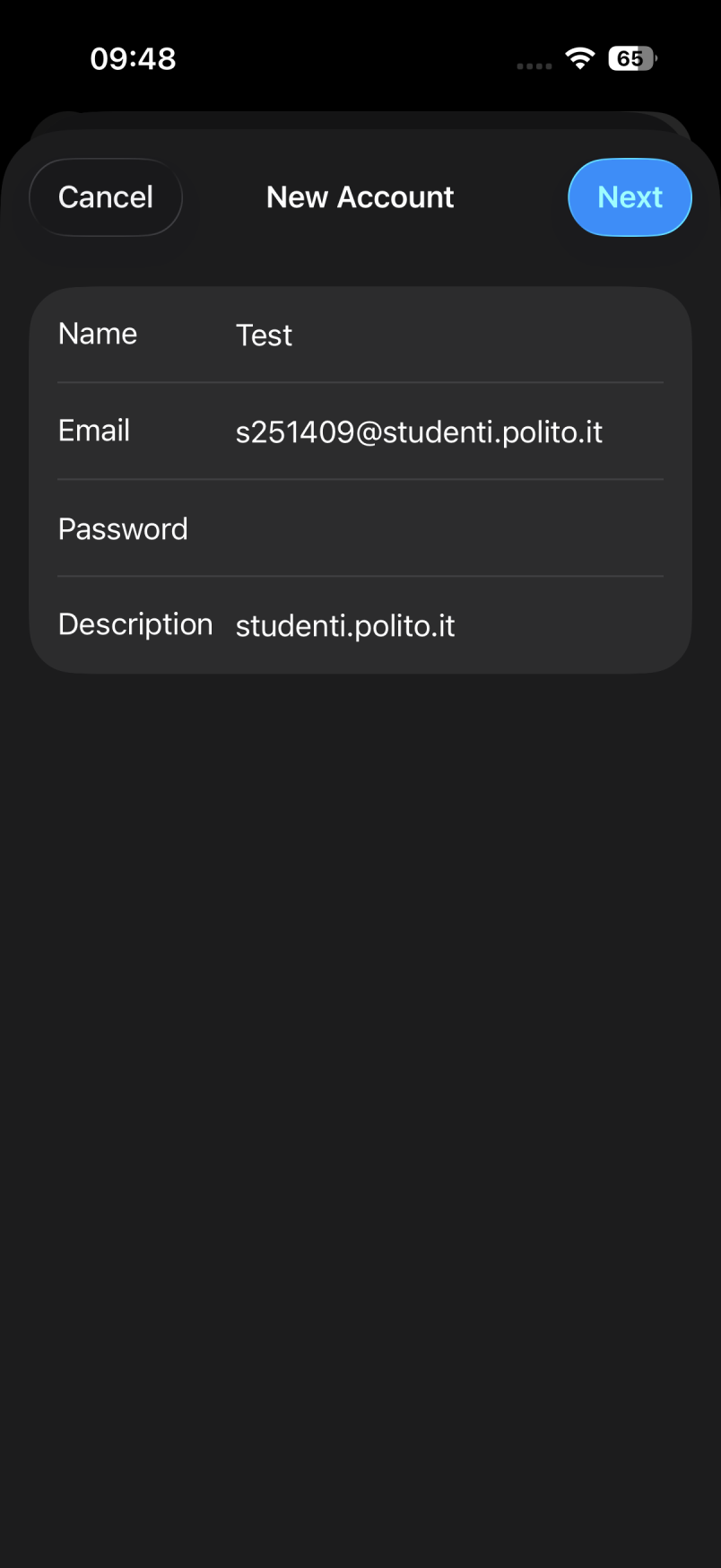
Enter your account details:

  • Name: Your name
  • Email: Your PoliTO student email address
  • Password: Your PoliTO email password
  • Description: studenti.polito.it
  • Tap Next.

Select IMAP and enter the following settings:

  • Incoming mail server:
    • Host name: imap.studenti.polito.it
    • Username: Your full PoliTO student email address
    • Password: Your PoliTO email password
  • Outgoing mail server:
    • Host name: smtp.studenti.polito.it
    • Username: Your full PoliTO student email address
    • Password: Your PoliTO email password

Tap Next. Your iPhone or iPad will display "Verifying" while checking the server settings—wait for the verification process to finish.

icone ufficiali (19).jpg

Immagine
Mail_IOS_EN_Step6.PNG
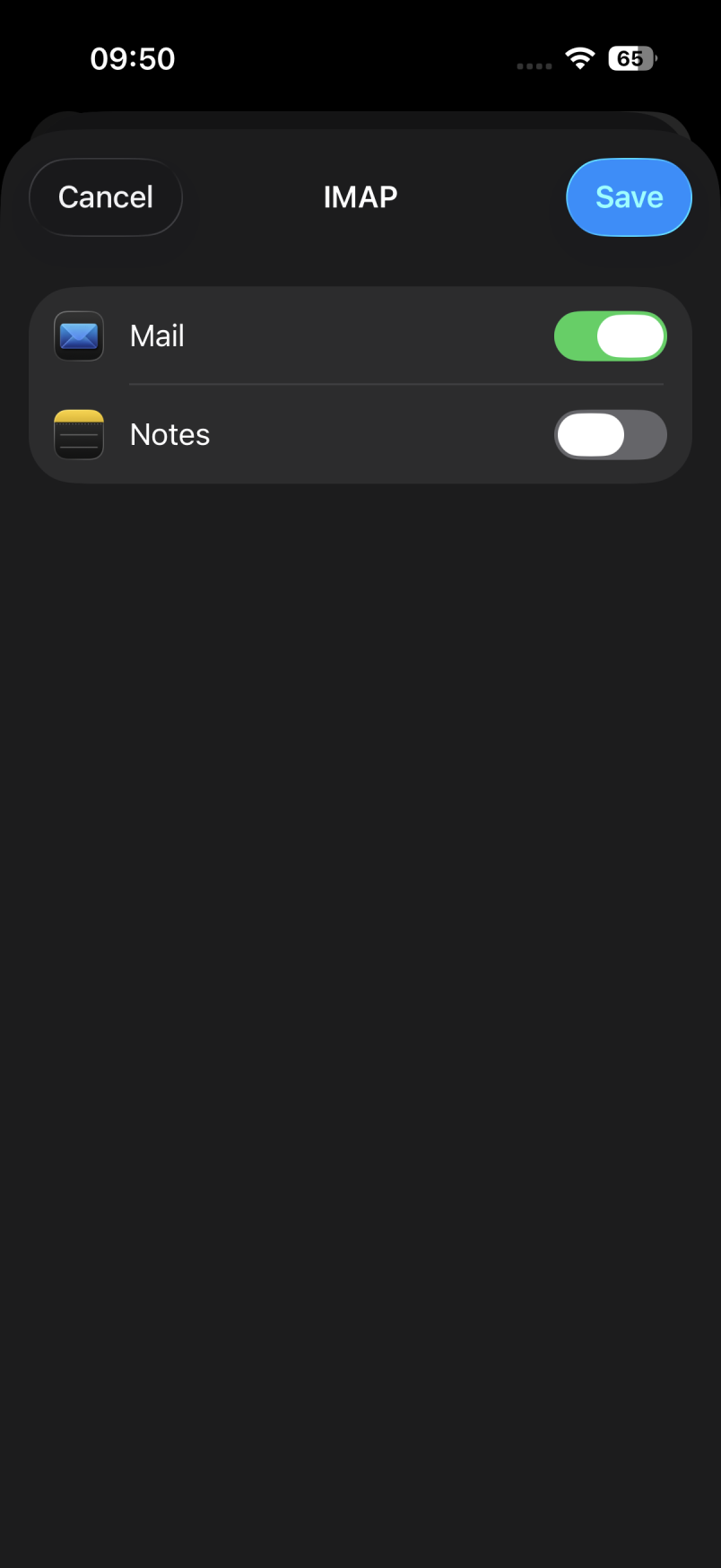
  • Once verification is successfully completed, ensure Mail is toggled ON.
  • Tap Save.

Confirm the account and return to Mail Accounts as the final step to complete.