University IT Services logo

How to set up email with Samsung Mail

Immagine
unnamed (1).png

Adding your PoliTO email address to the Samsung Email app allows you to receive notifications whenever you receive an email. The setup takes just a few steps: here is the step-by-step guide accompanied by configuration screenshots.
Immagine
Samsung_Mail_EN_Step1.jpeg

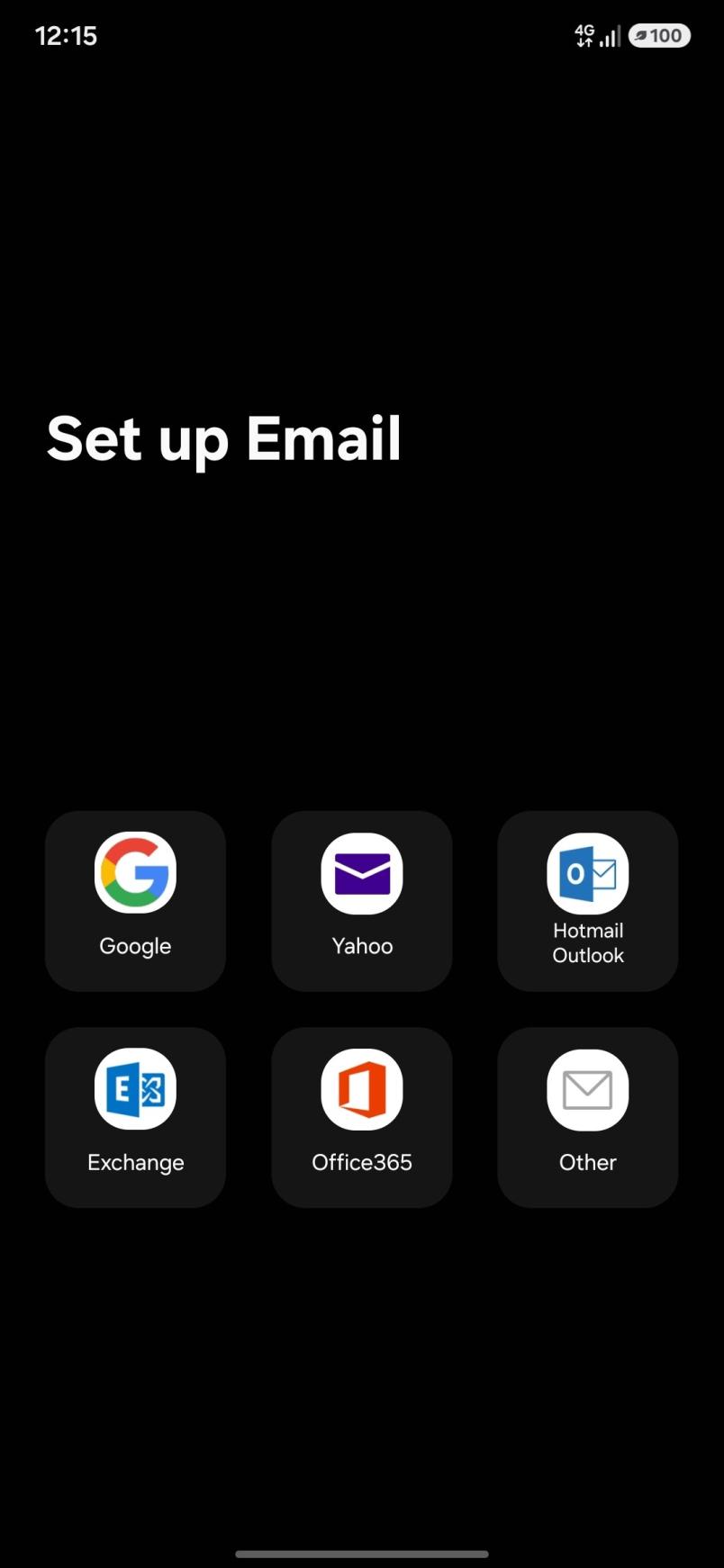
Open the Samsung Email app. On the Set up Email screen, select Other.

Immagine
Samsung_Mail_EN_Step2.jpeg

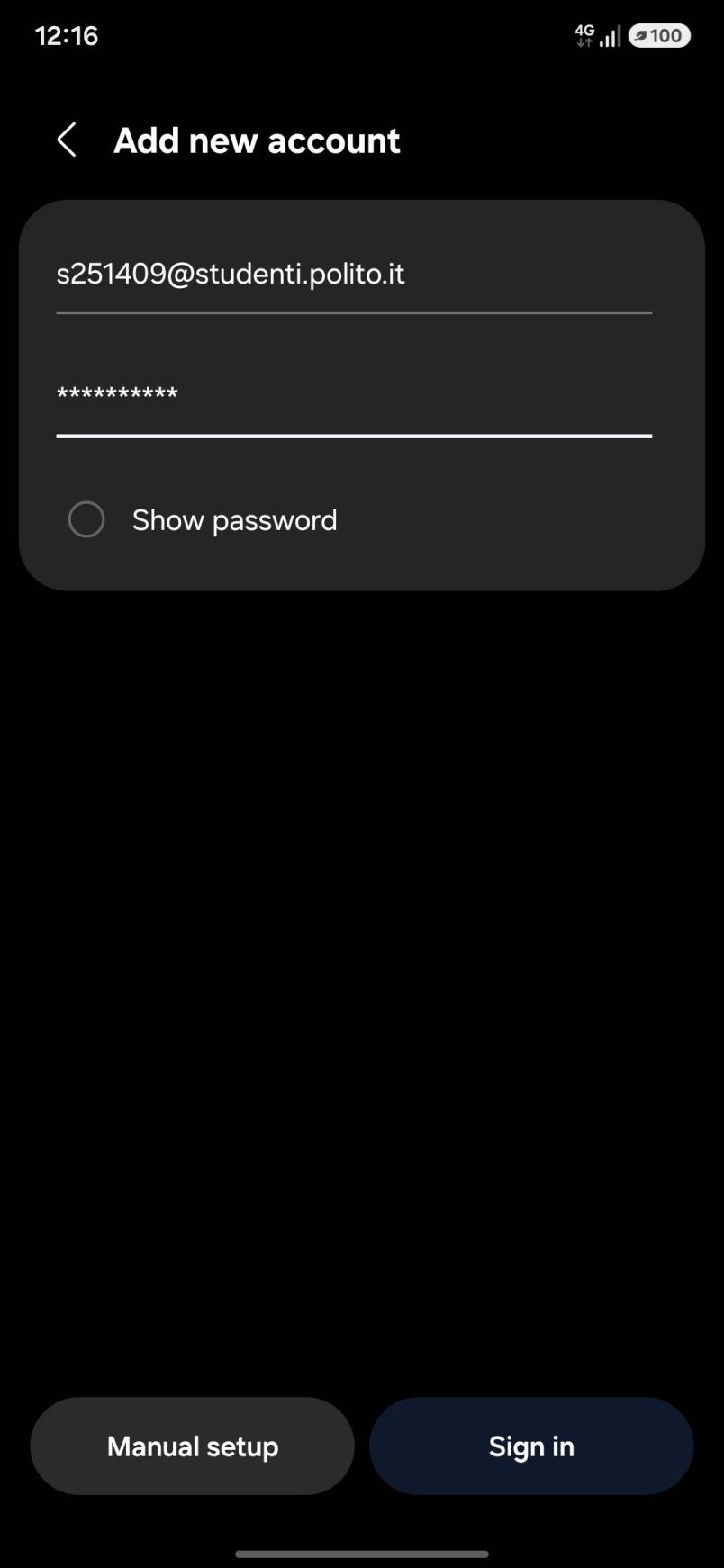
Enter:

  • Email address: your PoliTO student email address
  • Password: your PoliTO email password
  • Tap Manual setup

Immagine
Samsung_Mail_EN_Step3.jpeg

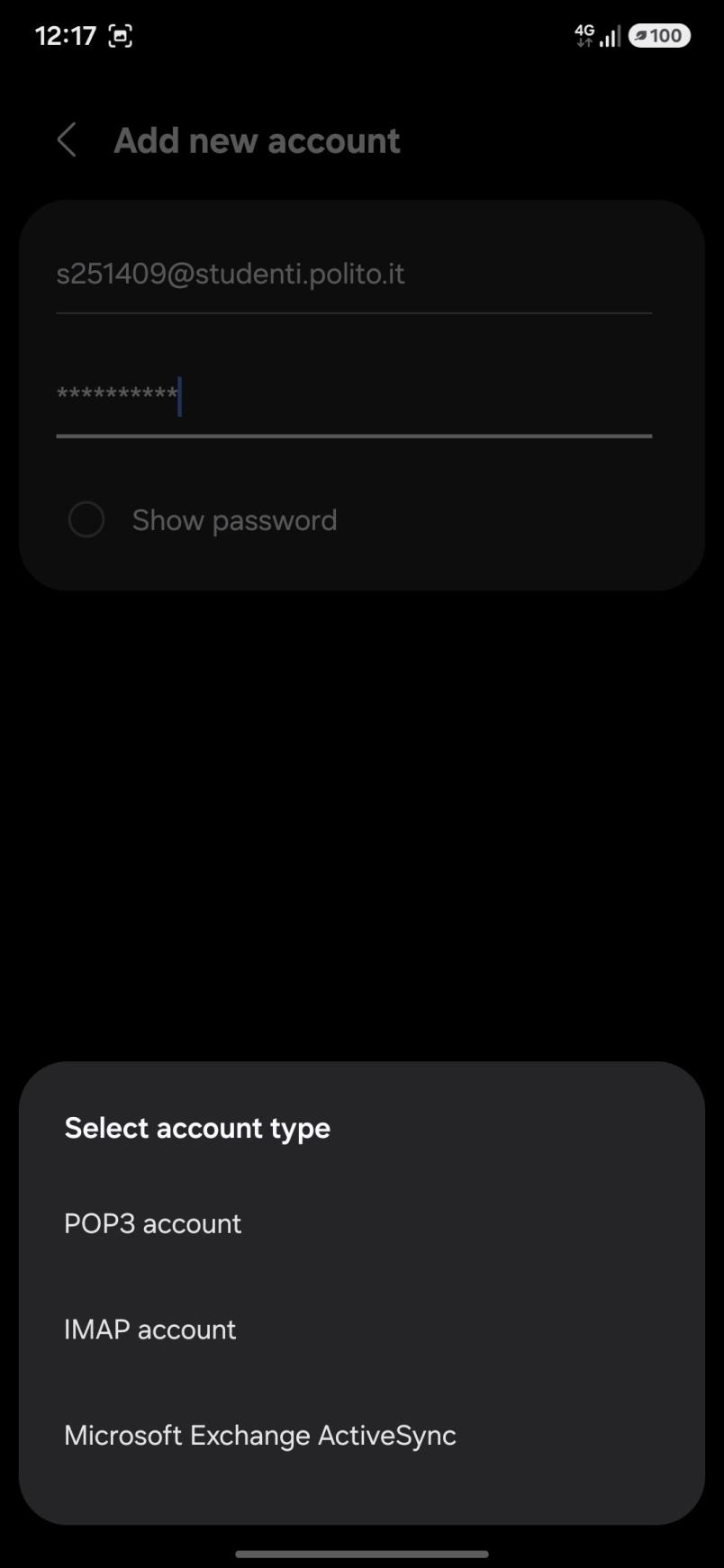
In the Select account type section, choose IMAP account.

In the Account section, enter:

  • Email address: your PoliTO student email address
  • Username: your full PoliTO student email address
  • Password: your PoliTO email password

incoming server settings

  • IMAP server: imap.studenti.polito.it
  • Security type: SSL
  • Port: 993
  • IMAP path prefix: leave blank

outgoing server settings

  • SMTP server: smtp.studenti.polito.it
  • Security type: SSL
  • Port: 465
  • Require authentication to send emails: enabled
  • Username: your full PoliTO student email address
  • Password: your PoliTO email password

Tap Sign in.
 

icone ufficiali (17).jpg

Immagine
Samsung_Mail_EN_Step5.jpeg

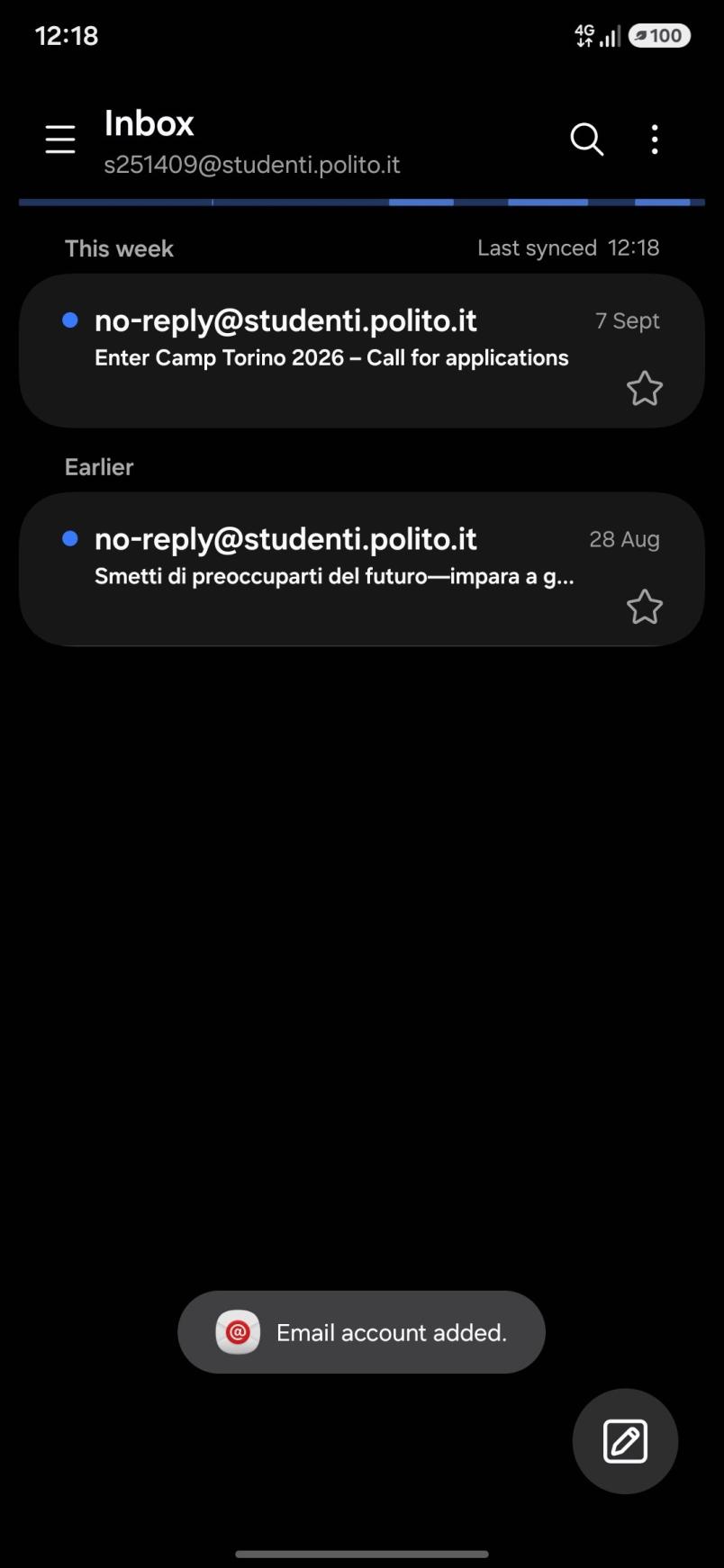
After verification is successfully completed, Samsung Email will open your Inbox. 

The message "Email account added" confirms that your PoliTO account has been configured correctly.
 

App download