University IT Services logo

How to set up email with Outlook desktop

Immagine
51tOZiEHNLL.png

Adding your Politecnico di Torino mailbox to the Outlook Desktop client allows you to access your emails in a single professional interface. 

The setup procedure takes just a few minutes: follow the instructions and screenshots below to complete access correctly.

Open Microsoft Outlook on your computer. On the Welcome to Outlook screen, enter your PoliTO student email address and click Continue.

Outlook_Desktop_EN_Step1.png

After clicking Continue, provider options will appear. Click Choose the provider. A list of email providers will be displayed; select IMAP. Then, on the screen that appears, click Sign in.

icone ufficiali (17).jpg

Enter the following information:

  • Email address: your PoliTO student email address
  • IMAP Username: your full PoliTO student email address
  • IMAP Password: your PoliTO email password

incoming email server

  • IMAP Incoming Server: imap.studenti.polito.it
  • Port: 993
  • Security: Use SSL to connect (recommended)

outgoing email server

  • SMTP Username: your full PoliTO student email address
  • SMTP Password: your PoliTO email password
  • SMTP Outgoing Server: smtp.studenti.polito.it
  • Port: 465
  • Security: Use SSL to connect (recommended)

Make sure Show Advanced Settings is enabled. Then click Add Account

Outlook_Desktop_EN_Step3.png

Immagine
Outlook_Desktop_EN_Step4.png

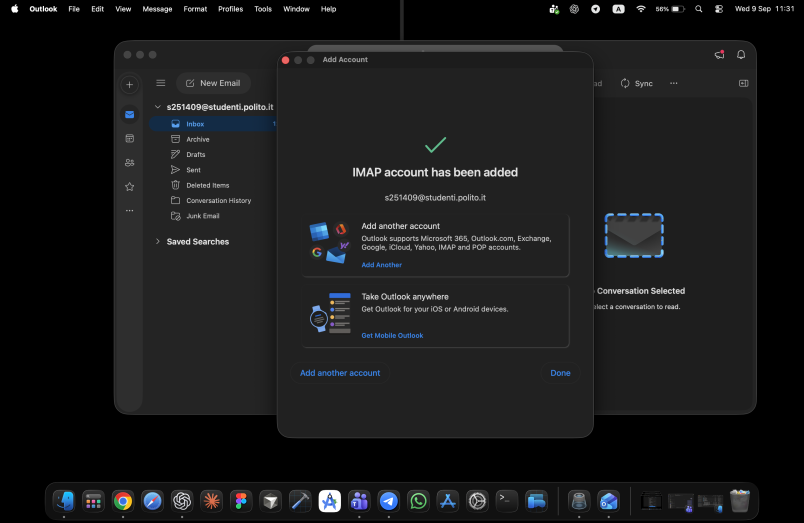
After verification is successfully completed, Outlook will display the message: "IMAP account has been added". Click Done.

Your PoliTO account will appear in the Outlook sidebar. Open the Inbox to verify that the account has been added successfully and that messages are syncing.

Access the link